ClaudeRemote guide
Manage and control the AI sessions already open in Chrome on your computer, such as Claude and ChatGPT, from your phone browser. Four steps to get started, then common questions.
1. Create an account #
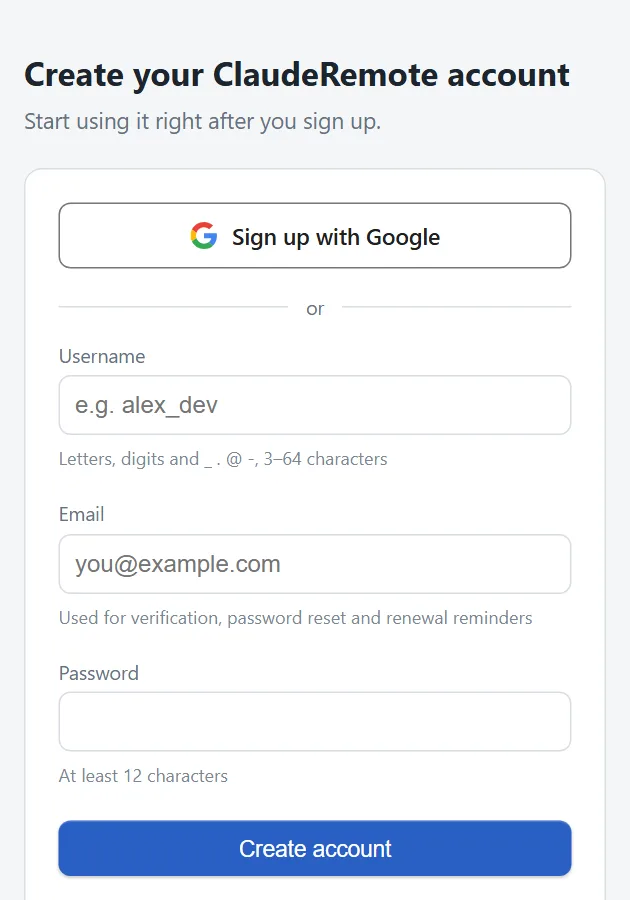
The quickest way, if you have a Google account: click "Sign up with Google" on the sign-up page and choose your Google account. No password to set and no email to verify.
Or fill in a username, email and password. We will send you a verification email; click the link in it (check your spam folder if you do not see it, or resend it from your account page).
Sign in the same way you signed up, on both your computer and your phone. If you signed up with a password, you can later link Google under "Sign-in methods" on your account page and use either.
2. Install the extension and sign in on the computer #
- In Chrome on your computer, open Chrome Web Store and install ClaudeRemote.
- Click the puzzle icon at the right of the toolbar, find ClaudeRemote and click the pin so it stays in the toolbar.
- Click the ClaudeRemote icon, read the notice and click "I understand and agree".
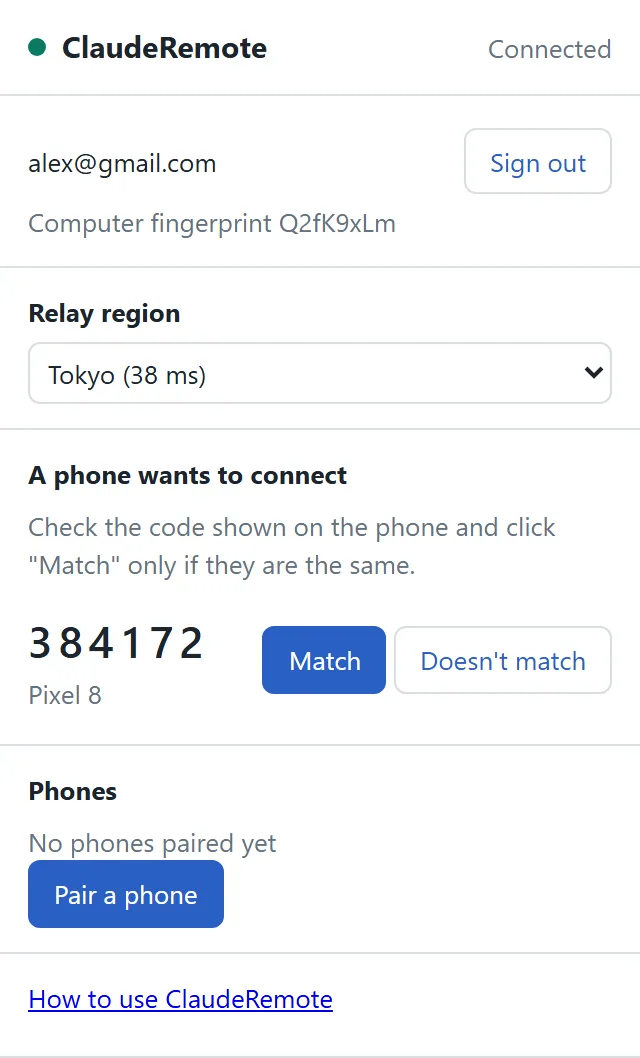
- If you signed up with Google, click "Sign in with Google" and choose the same Google account in the window that opens. If you signed up with a password, click "Sign in" and enter your username and password. When you see "Signed in" you are done. A green dot at the top left of the popup means it is connected.
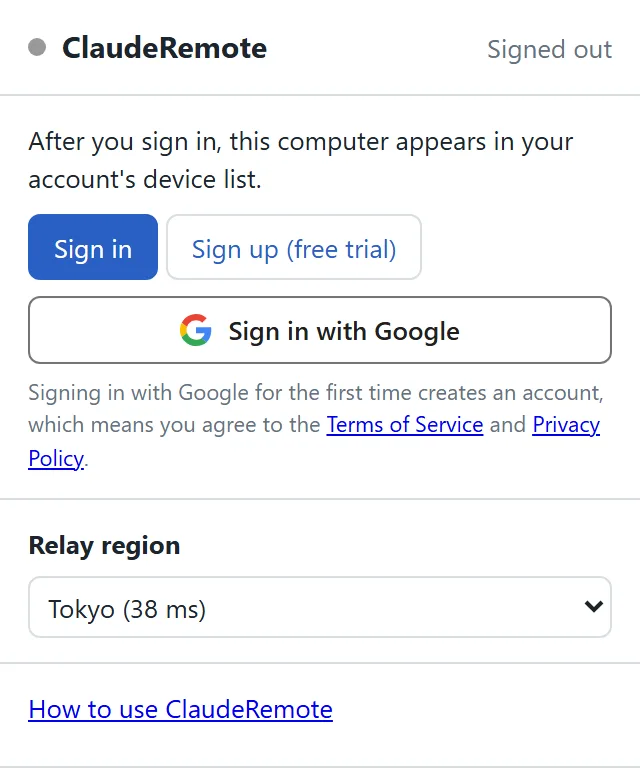
Signing in with a Google account for the first time creates a new account. If the "Signed in" window says a new account was created but you already had one, you picked the wrong Google account: click "Sign out" and sign in with the right one.
The "Relay region" in the popup is set to the fastest one automatically; you normally do not need to change it.
3. Pair your phone #
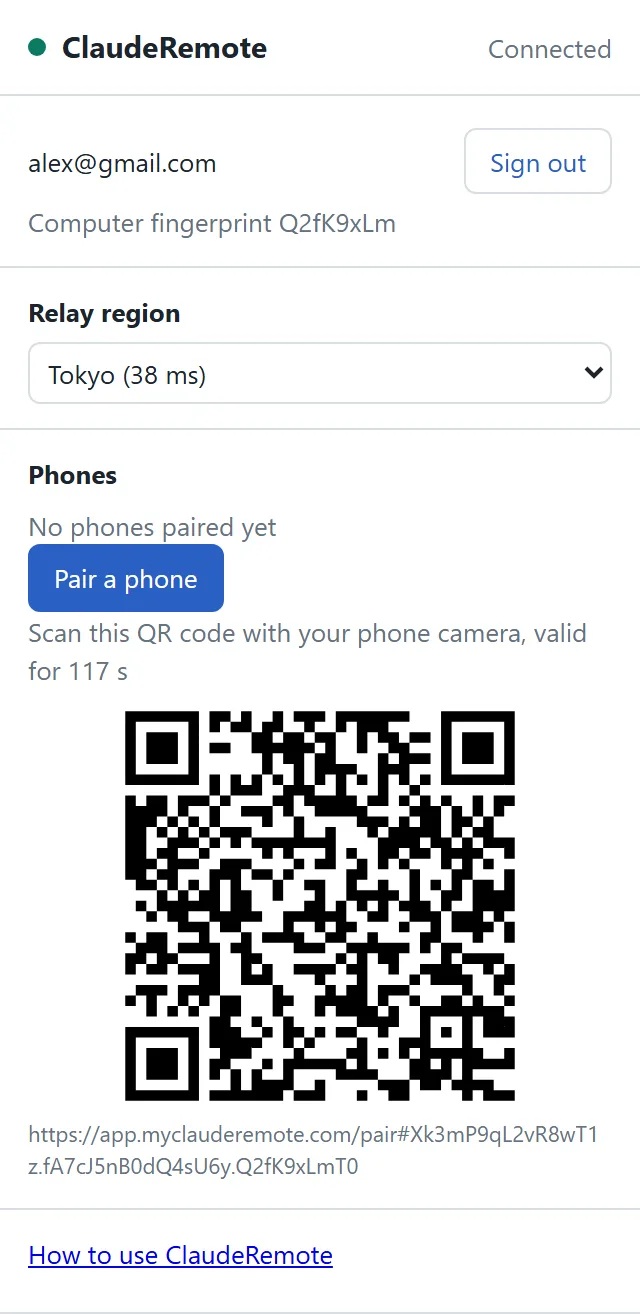
- In the extension popup, click "Pair a phone". A QR code appears (valid for 2 minutes).
- Scan it with your phone camera. The controller opens on your phone, signs in and connects to this computer automatically.
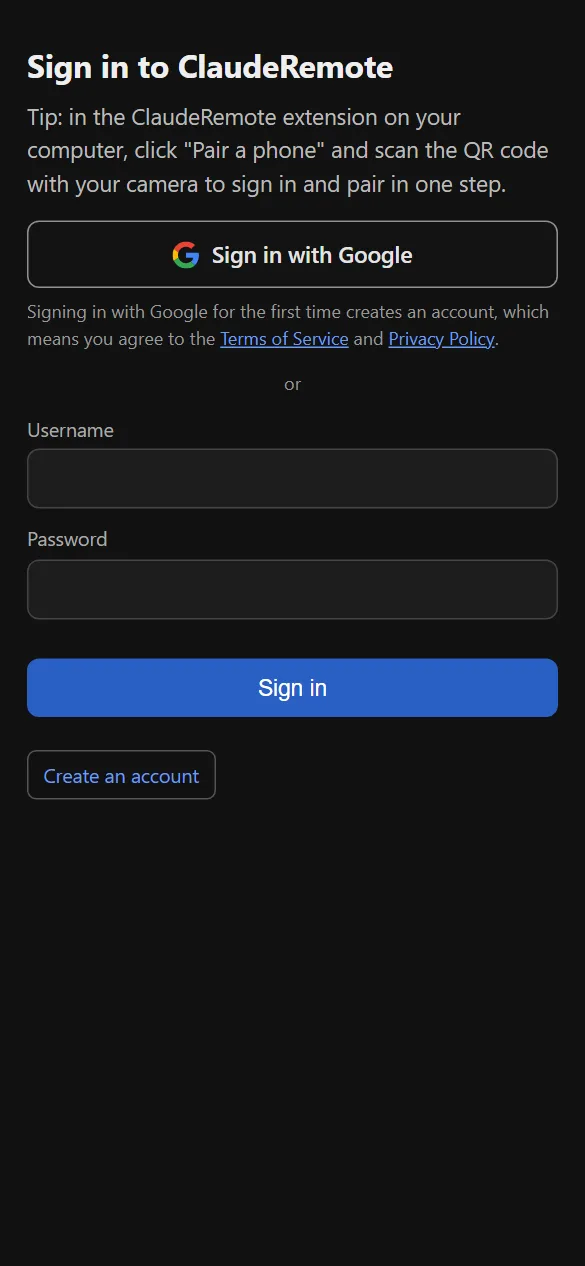
Without a QR code: open app.myclauderemote.com/app in your phone browser, sign in with the same account (if you signed up with Google, tap "Sign in with Google" and choose the same Google account) and choose this computer. The first time, the phone and the computer show the same 6-digit code; nothing is sent until you click "Match" on both.
Tip: add the controller page to your home screen to open it with one tap.
4. Use it on your phone #
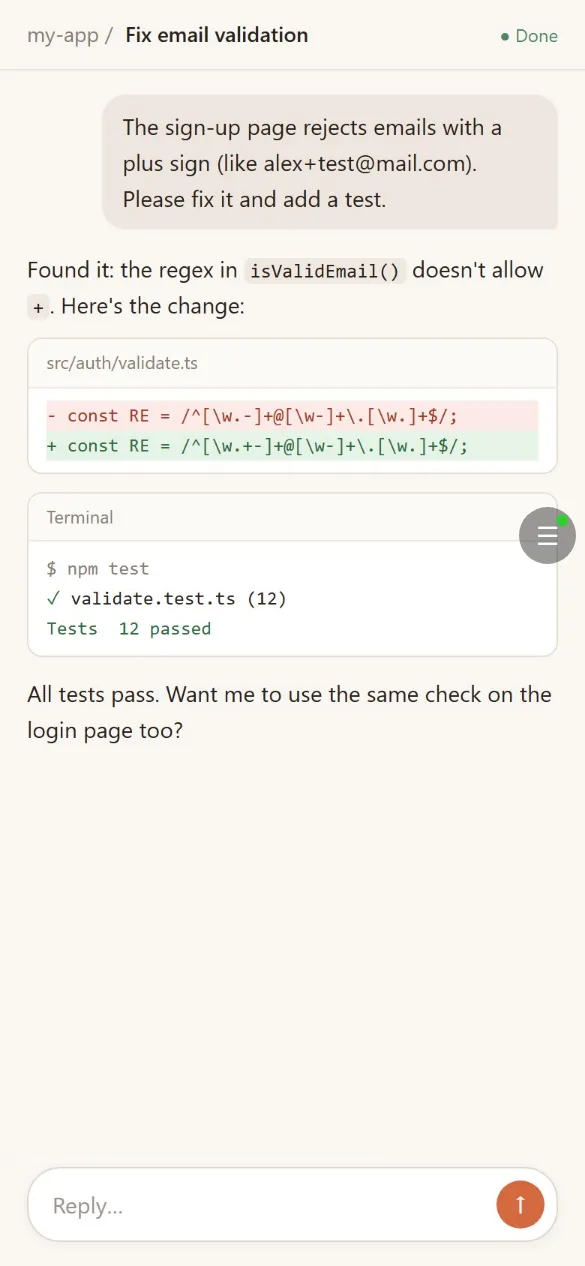
- Your phone shows the computer's current tab, or claude.ai if it is open on the computer.
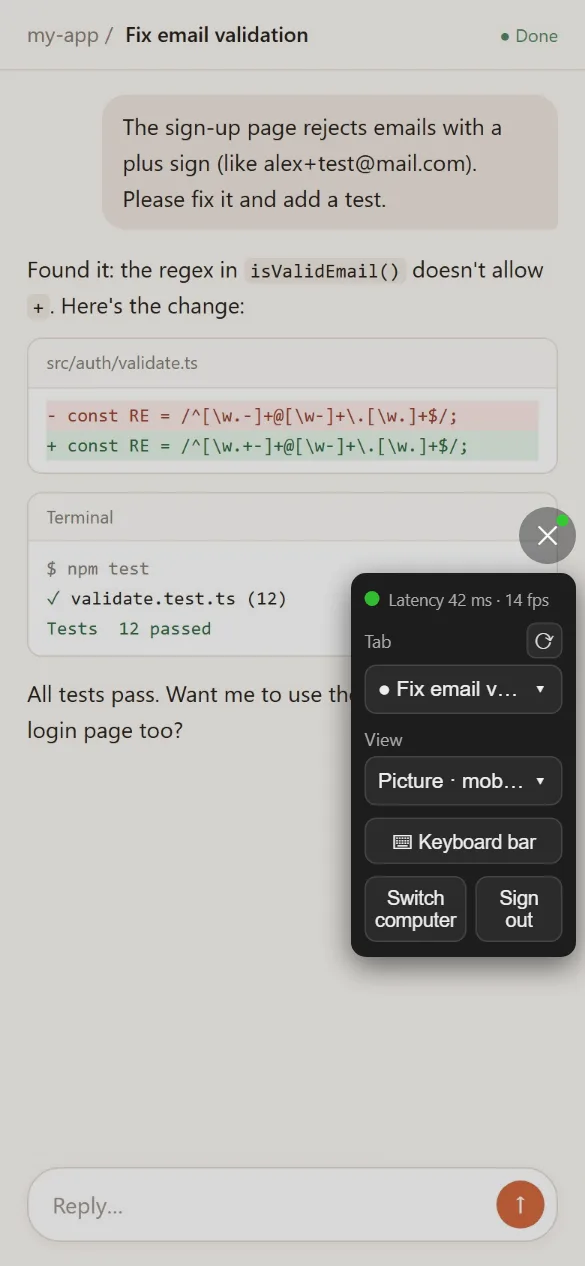
- Controls: tap the round ☰ button on the right edge of the screen (press and drag to move it); a green dot on it means you are connected to the computer. Here you can switch tabs (⟳ refreshes the list), change the view, switch computers or sign out.
- Views:
- DOM (default): rebuilds the page on your phone. Sharp text, smooth scrolling and little data; best for chat and reading.
- Picture · mobile layout: the page on the computer is laid out for your phone's screen and sent as pictures. Use it if the DOM view does not look right.
- Picture · desktop layout: the page keeps its desktop layout and is sent as pictures.
- Tap and scroll as you normally would.
- Typing: in the DOM view, tap a text field on the page and your phone keyboard opens; what you type appears on the computer, and the keyboard's Send / Enter key presses Enter on the computer. In the picture views, use "⌨ Keyboard bar" in the controls.
- Swipe back: after you tap the page once, swiping from the screen edge opens the page's navigation (for example the claude.ai sidebar); swipe again to close it. You stay on the controller page. If the controls are open, swiping just closes them.
Common questions #
Chrome shows "… started debugging this browser"? #
To show and operate the tab you chose, the extension attaches to that tab, and Chrome shows this bar. That is expected. Click "Cancel" on the bar to disconnect; it is also released when all your phones disconnect.
Using the Lite edition and your phone is stuck (the page doesn't change, taps do nothing)? #
The Lite edition doesn't use the debugger permission, so when Chrome treats the page on your computer as not visible, the page pauses and your phone looks stuck. This happens when:
- The Chrome window is minimized or completely covered by other windows: bring it back on screen (a small corner showing is enough; with two monitors, the second one is the easiest place).
- You switched to another tab in that window: switch back. To browse other pages on the computer, open a new Chrome window.
- The computer is locked or asleep: unlock it. While a phone is connected the extension keeps the computer awake, so it won't lock or sleep when idle, but locking it yourself (Win+L, closing a Mac's lid) still pauses the page.
- You use Remote Desktop to reach a Windows computer: closing the Remote Desktop window locks it. When you leave, run this command on that computer instead (create a text file, paste it in, save it as a .bat file and double-click it; administrator rights are needed):
powershell -NoProfile -Command "tscon.exe (Get-Process -Id $PID).SessionId /dest:console"
Remote Desktop disconnects and the computer keeps running without locking. Note: its screen stays unlocked, so if it is a physical computer in an office or at home, anyone nearby can see and use the desktop.
Once it's back, your phone catches up within seconds; if not, reload the phone page. For the full experience, working even when the computer is locked or Chrome is minimized, use the Pro edition.
The picture on my phone stopped updating? #
Pro edition: when the computer goes to sleep the connection drops and the picture stops; locking it, turning off the screen or disconnecting Remote Desktop is fine. While a phone is connected the extension keeps the computer from sleeping, so usually you don't need to do anything. Using the Lite edition? See the previous question.
My phone cannot connect? #
Make sure the computer is on, Chrome is running and the dot at the top left of the extension popup is green. If it still fails, sign out of the extension, sign in again and pair your phone again.
I signed in but cannot see my computer? #
Your phone and computer are probably signed in to different accounts, for example because you chose a different Google account (the first sign-in with a Google account creates a new, empty account). Check which account the page shows, sign out and sign in to the right one.
Signing in with Google says the email address is already registered? #
That email address was already used to sign up with a username and password. To keep others from taking over accounts, we never merge a Google account into an existing account by email. Sign in with your username and password, then click "Link Google" under "Sign-in methods" on your account page; after that you can sign in either way.
It says the identity key changed? #
This happens when browser data was cleared or a device signed in again, or if someone is impersonating your device. If it is your own device, click "Pair a phone" in the extension and scan again.
New phone, or lost my phone? #
Revoke the old phone under "Phones" on your account page (or remove it in the extension popup) and it can never connect again. Pair the new phone by scanning the QR code.
Forgot your password? #
Click "Forgot password?" on the sign-in page, enter your email and follow the link in the email. All your devices will need to sign in again. Accounts created with Google have no password; just click "Sign in with Google".
Is it secure? #
Page content and what you type are end-to-end encrypted between the extension and your phone; our servers only relay encrypted data and cannot read it. When you sign in with Google, we receive only your Google account identifier and email address, never your Google password. See the privacy policy.
Still need help? #
Email support@myclauderemote.com.